Chatbot Interface
 Pay by Face
 Automated Blog Writer
 Annual Report Analysis
 Action Bot
 Private LLM for Lawyers
 Custom EVM
 Token & ICO Launch
 Bitcoin/Litecoin-Based
 Blockchain Raffle/Lottery
 Carbon Credit Management
 Stablecoin Development
 Metaverse with Native Token
 Crypto Payment Gateway
 Crypto Exchange Development
 WordPress Website Development
 Carbon Credit Exchange Platform
 Custom Mobile App Development
 Carbon Credit Registry
 Custom Website Development
 Case Studies
 Testimonials
 About Us
 Vision & Mission
 Insight Success
 Team
 Careers
Free SSL for SugarCRM and other websites
For data to be secured SSL certification is a must. This article explains how to setup Free SSL for SugarCRM. For any help contact Techaroha Team
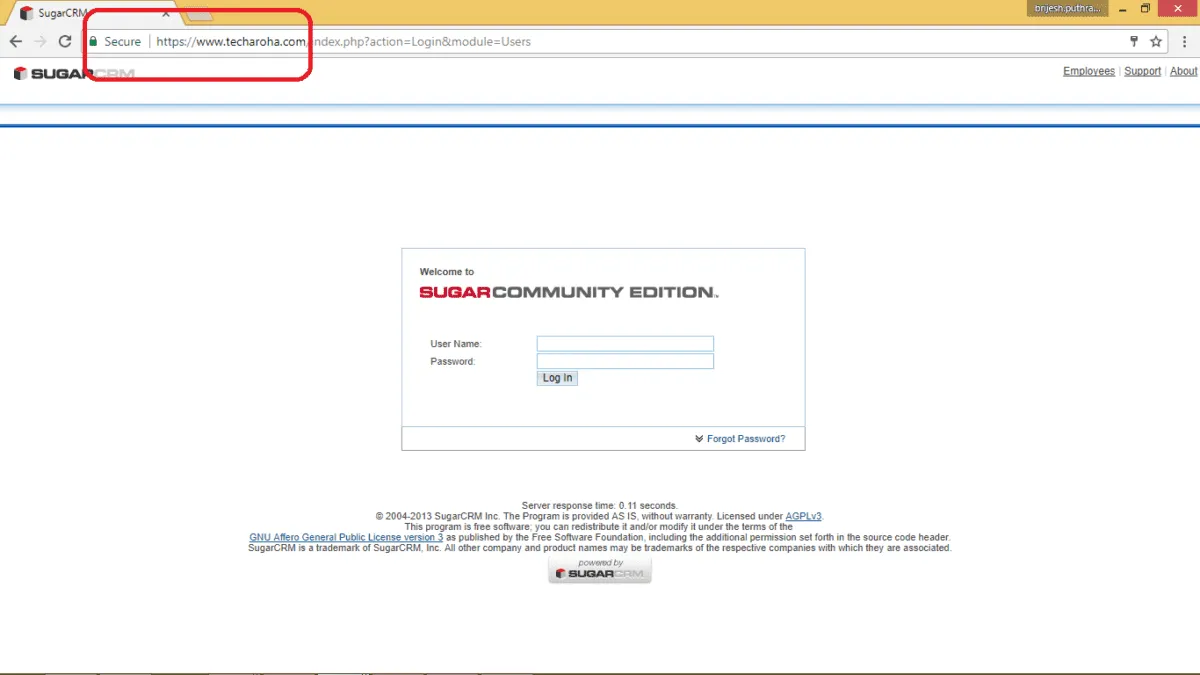
Why SSL is must for SugarCRM ?
SugarCRM or any other crm store vital information about Customer, leaking this data to hacker can pose a very serious problem for Companies. To avoid this best way to secure your website is setup a SSL for SugarCRM instance and domain, This article explains how to setup Free SSL for SugarCRM.
How to Setup Free SSL for SugarCRM
Using following steps it is very easy to get Free SSL for SugarCRM and other websites:
- Go to Website https://www.sslforfree.com/
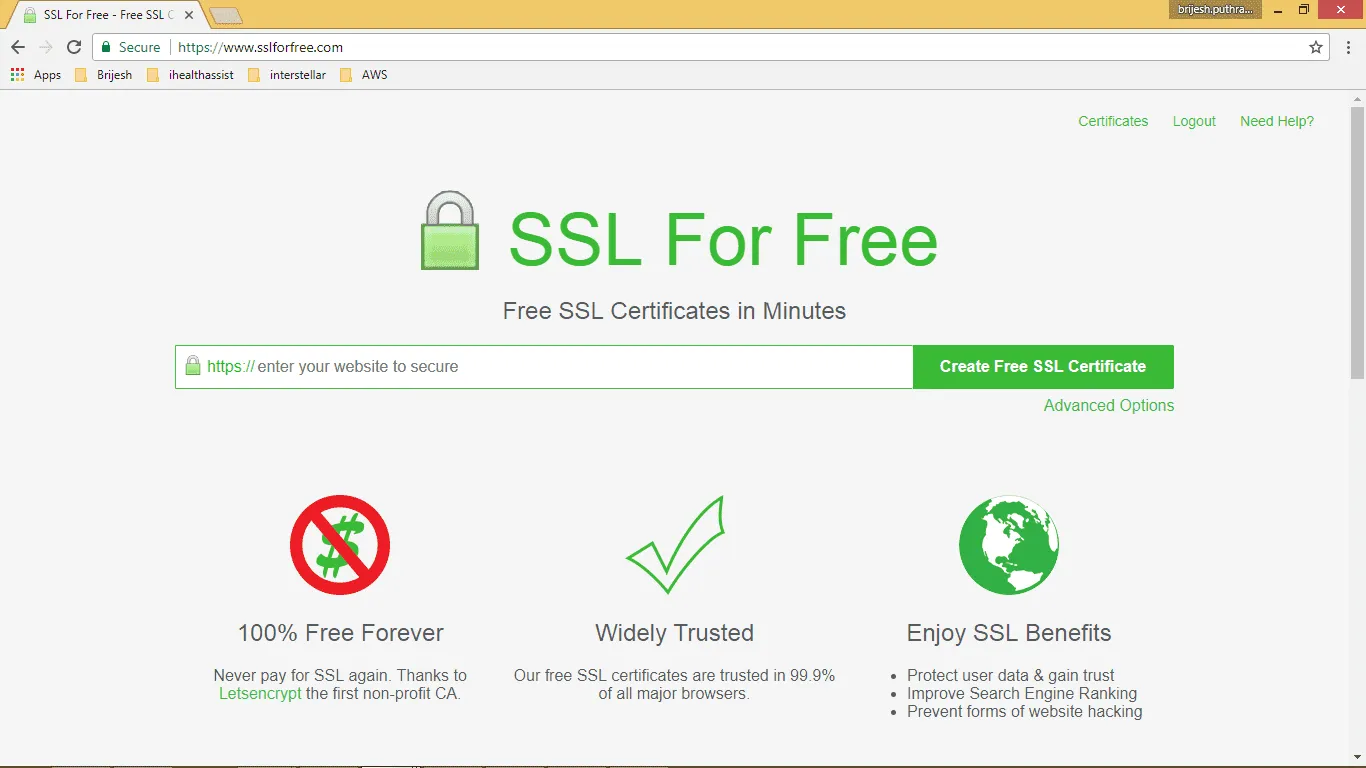
SSL for Free uses Let’s Encrypt, It’s a free and open Certificate Authority.
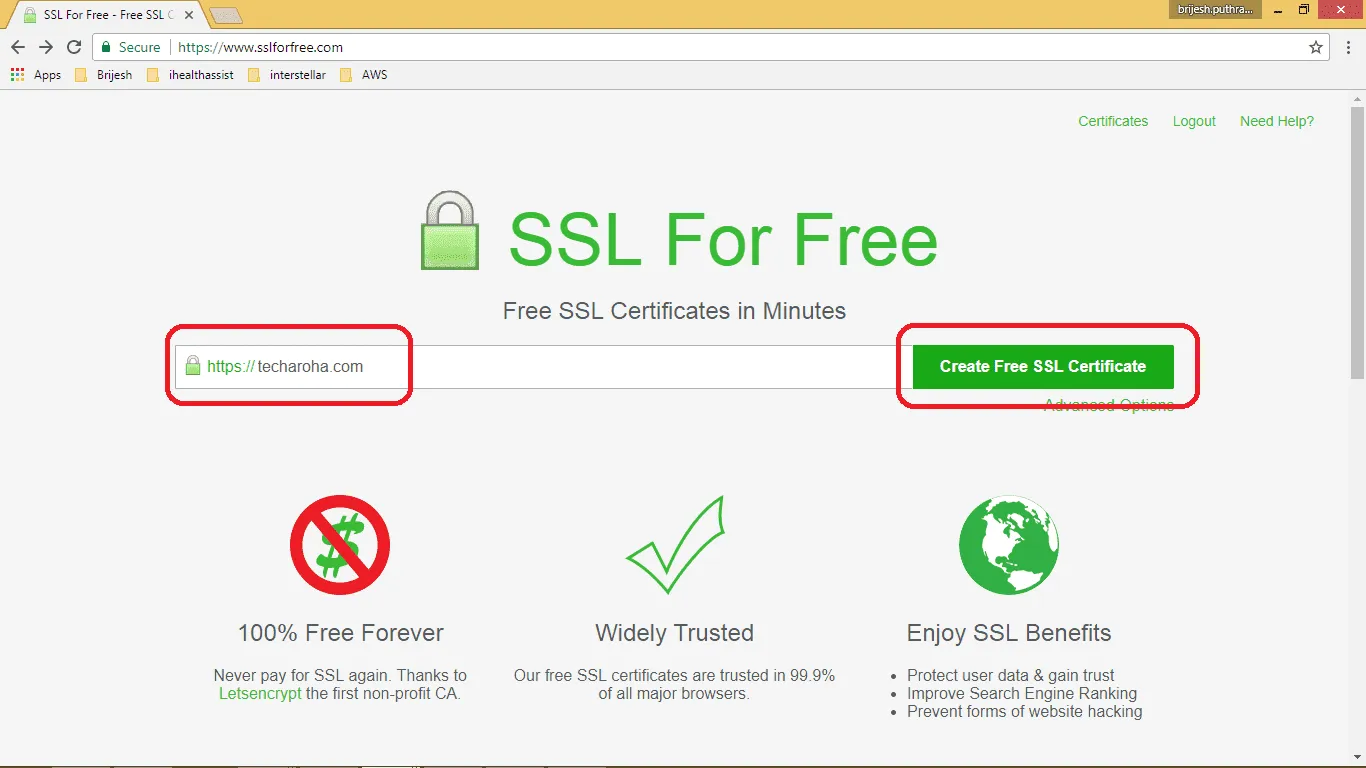
- Enter your website URL and click Create Free SSL Certificate
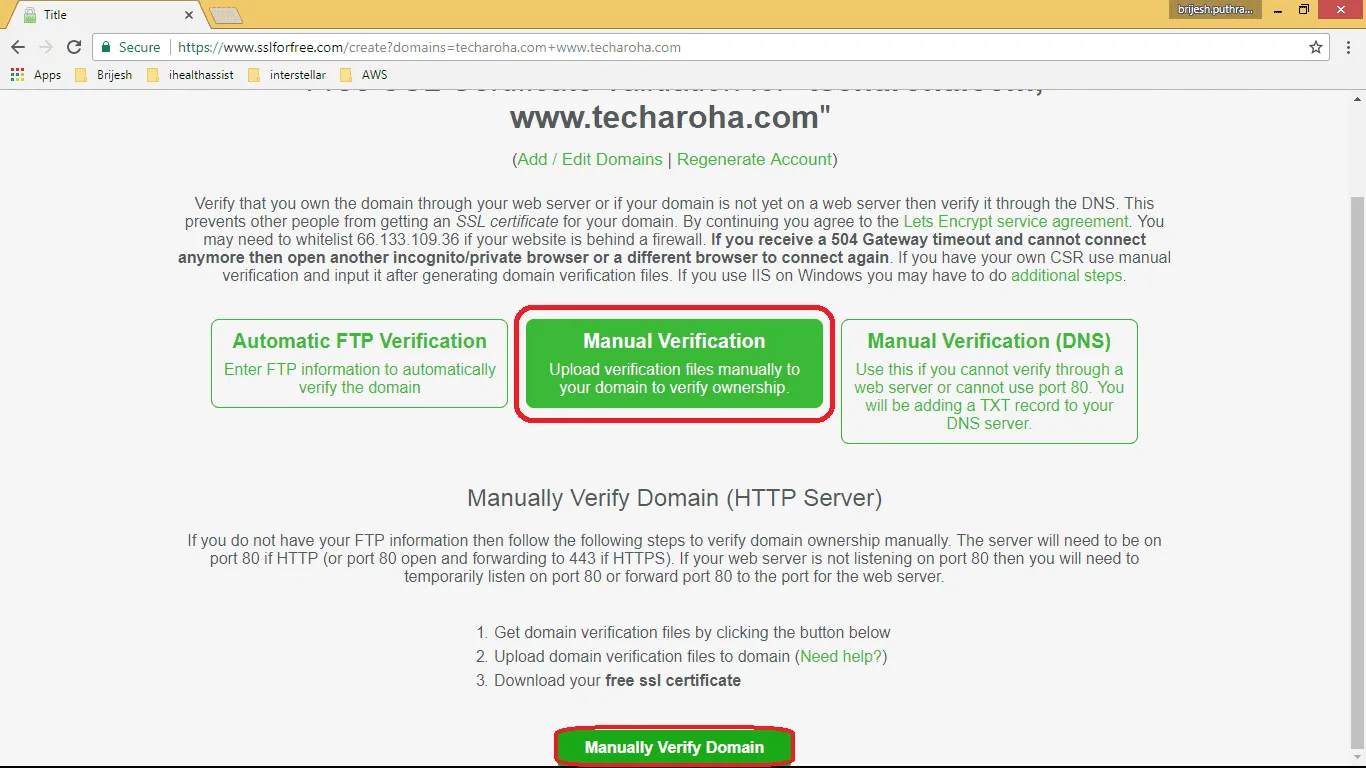
- Click on Manual Verification, Then on Manually Verify Domain
- Download verification file by clicking on given link
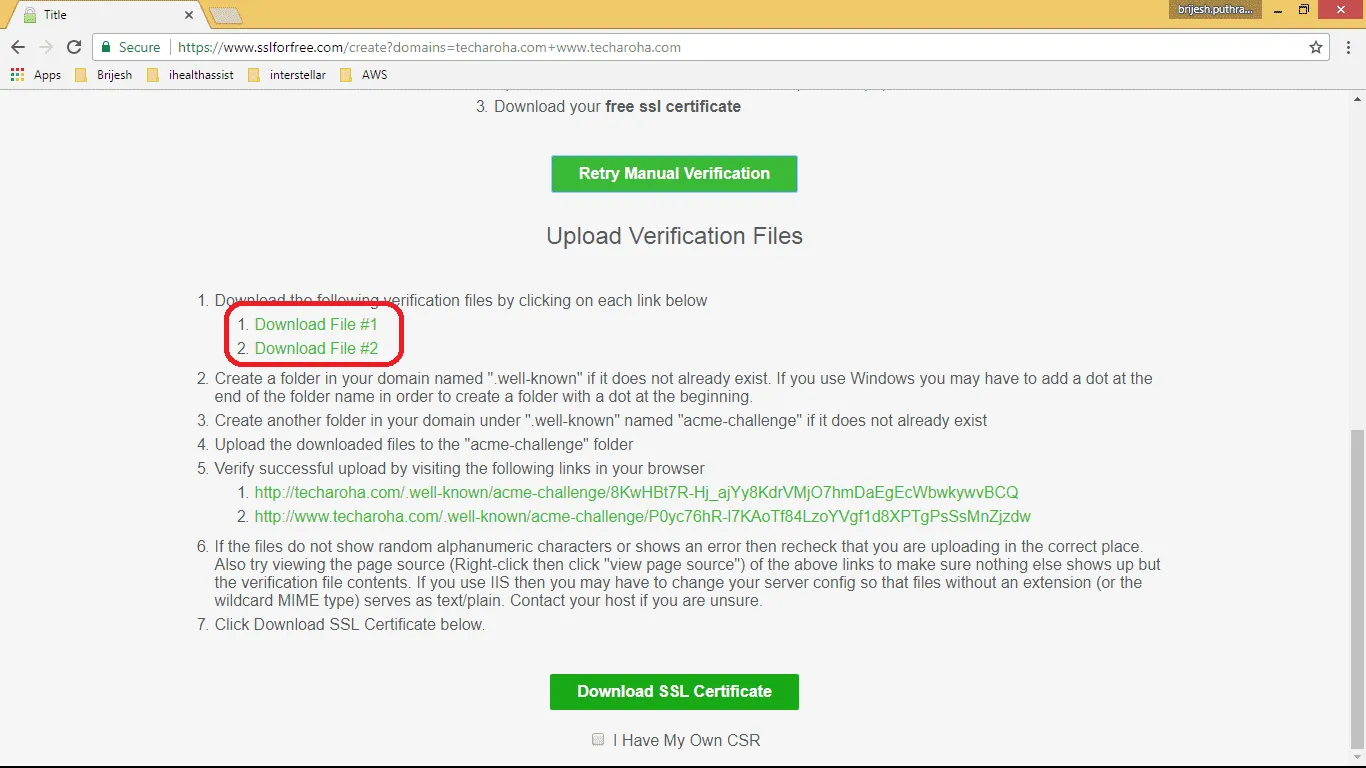
- Upload verification files to server
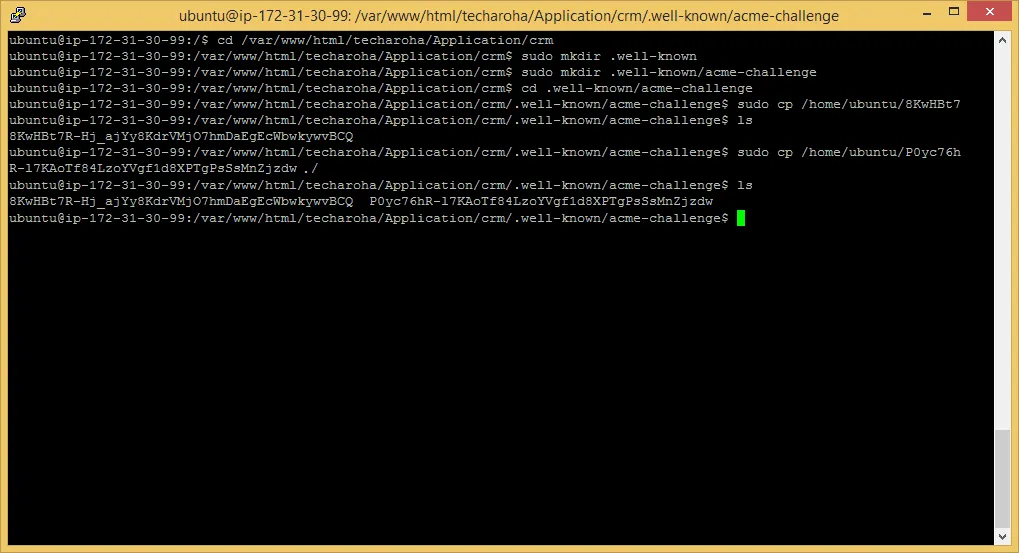
We can upload to home directory of user using WinSCP then copy to .well-known/acme-challenge directory using Putty (or similar utility)
We can do this by following commands:
cd /var/www/html/blogs/techaroha_wordpress/techaroha/Application/crm
sudo mkdir .well-known
sudo mkdir .well-known/acme-challenge
cd .well-known/acme-challenge
sudo cp /home/ubuntu/8KwHBt7R-Hj_ajYy8KdrVMjO7hmDaEgEcWbwkywvBCQ ./
sudo cp /home/ubuntu/P0yc76hR-l7KAoTf84LzoYVgf1d8XPTgPsSsMnZjzdw ./
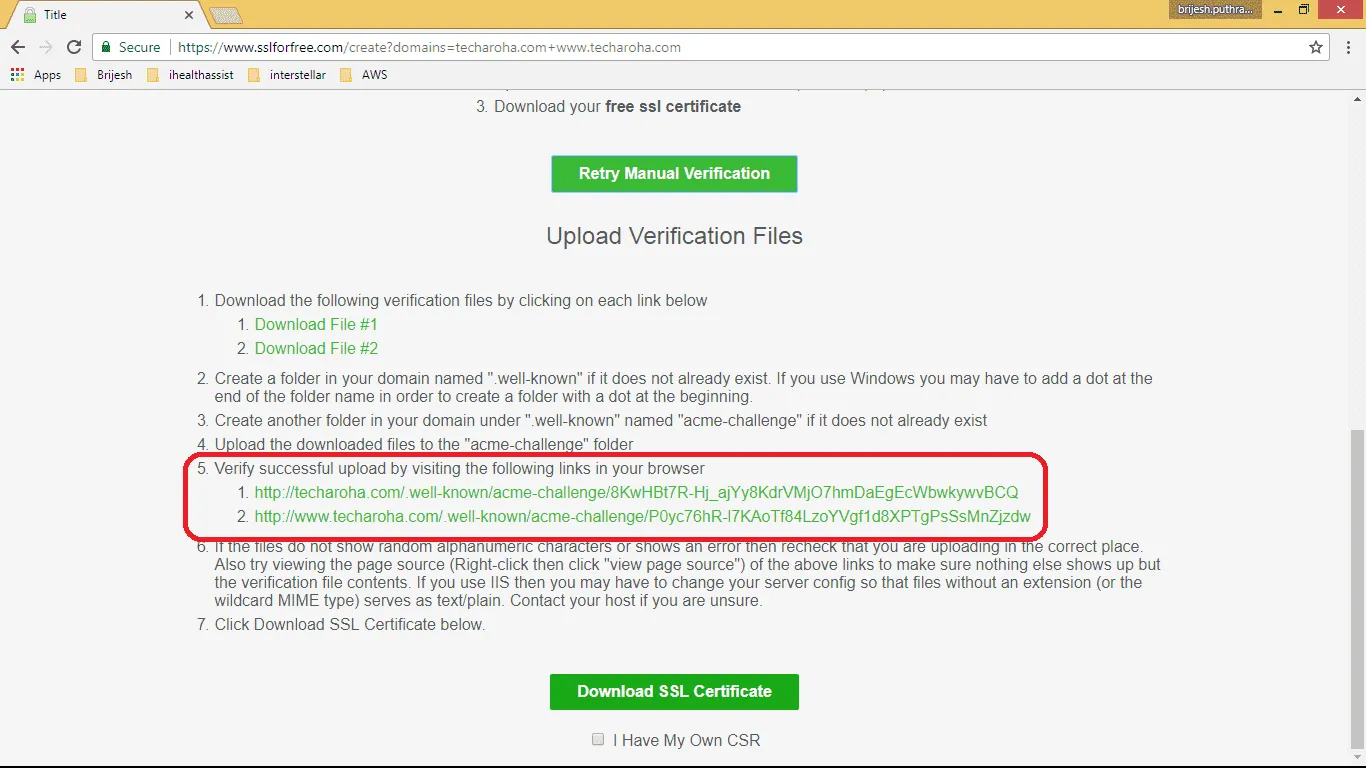
- You can check verification files are properly uploaded by clicking on given links
If it shows error like file not found check that you have uploaded to proper directory and directory is accessible
- If file verification links works properly click Download SSL Certificate
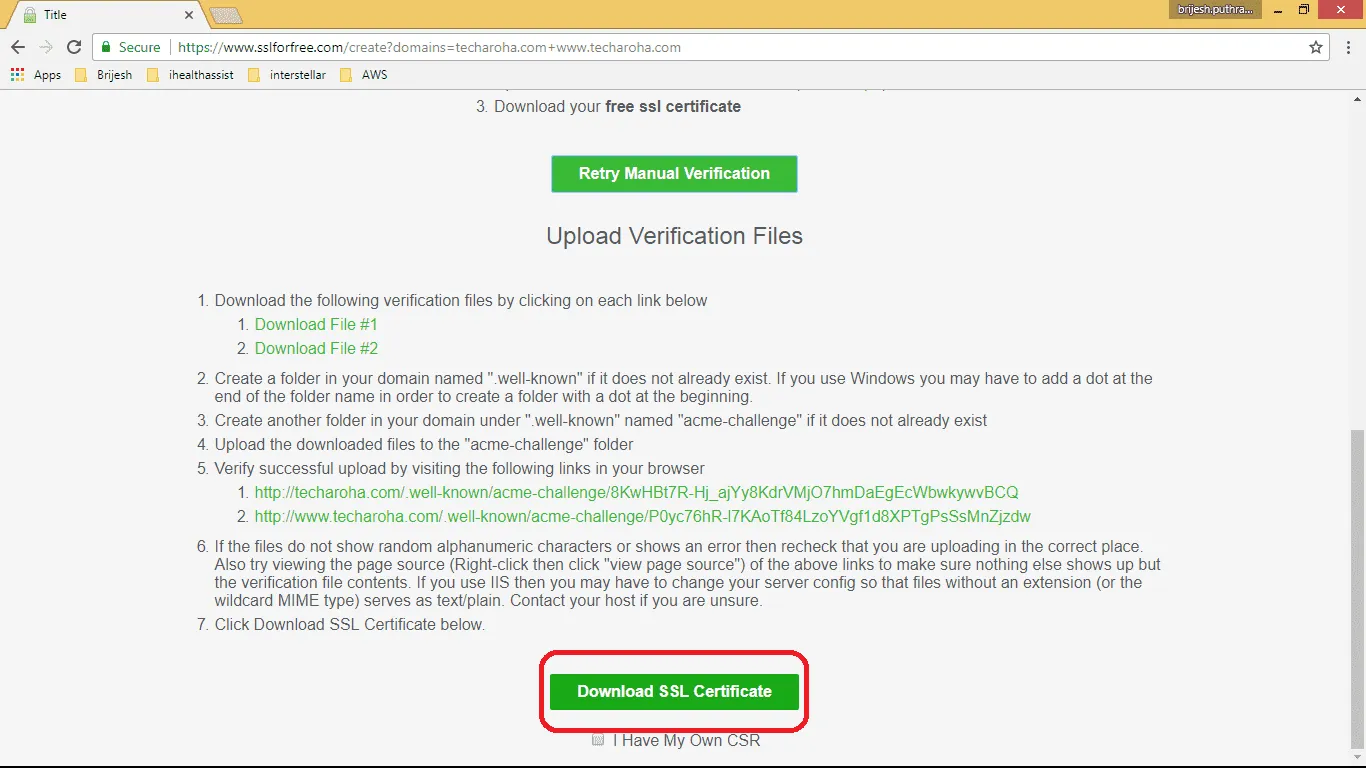
- Now Click Download All SSL Certificate Files to download all certificate files in a zip package
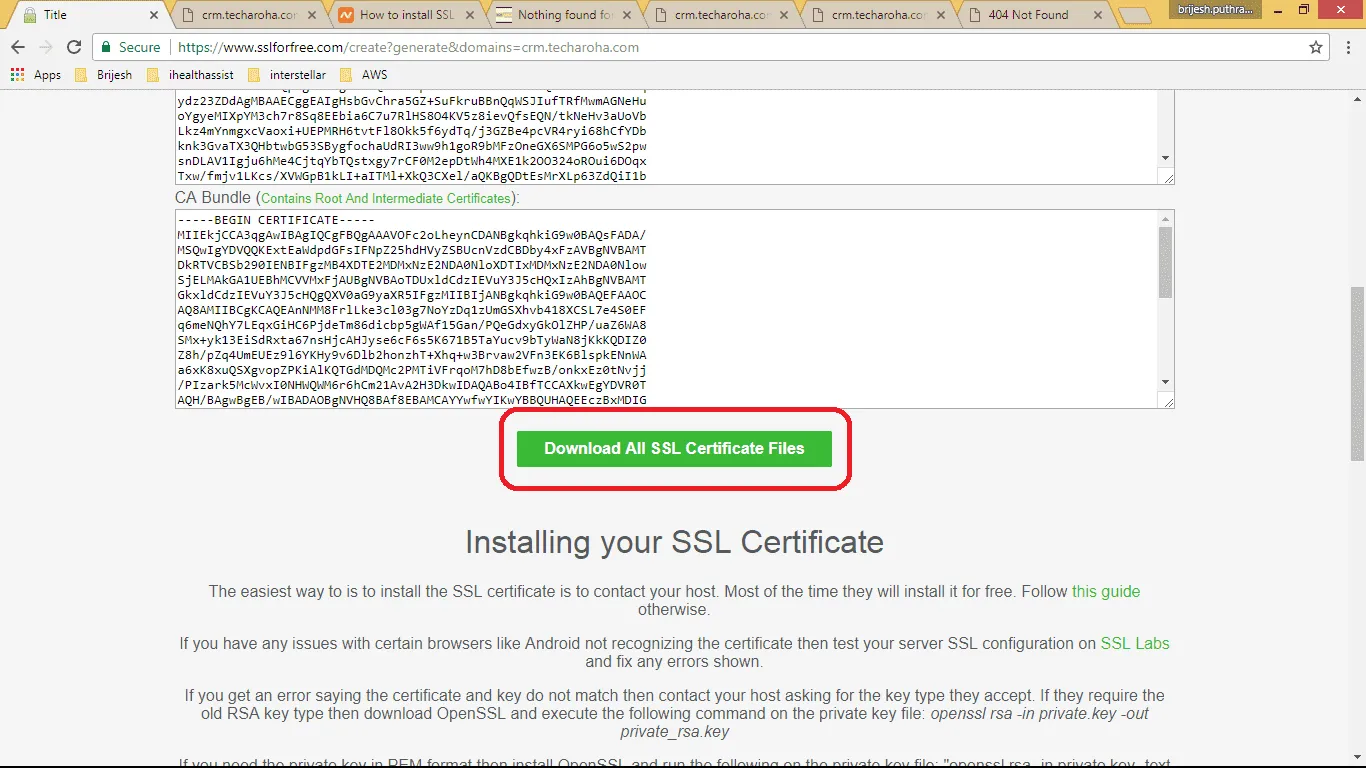
- Now Copy certificates to /etc/ssl/certs in your server
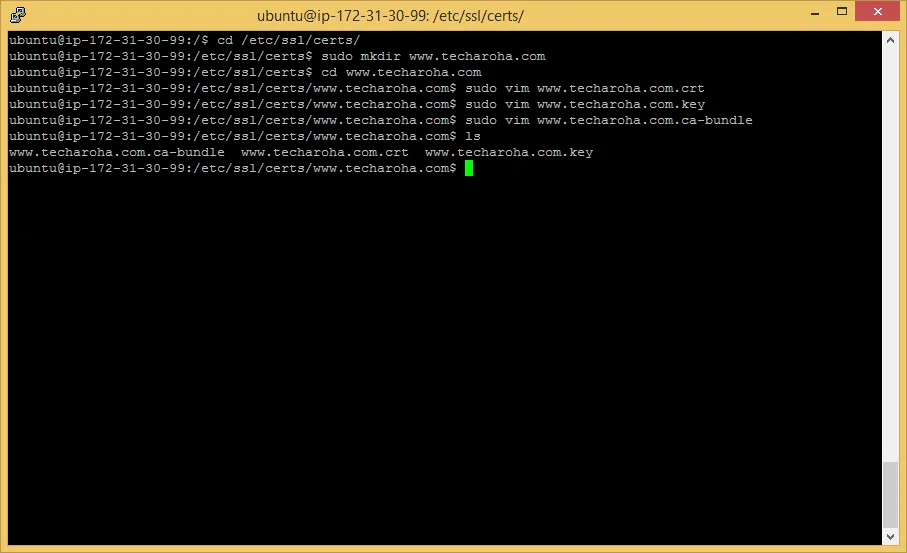
You can copy and save certificate files individually directly to server using these command
cd /etc/ssl/certs
sudo mkdir www.techaroha.com
sudo vim www.techaroha.com.crt (press i and paste certificate content, press esc key, then :wq to save)
sudo vim www.techaroha.com.key (press i and paste Private Key content, press esc key, then :wq to save)
sudo vim www.techaroha.com.ca-bundle (press i and paste CA Bundle content, press esc key, then :wq to save)
To generate CSR from certificate use following command
sudo openssl x509 -in yourDomainName.crt -signkey yourDomainName.key -out yourDomainName.csr
- Configure apache to use ssl
Edit your websites apache config file using following commands
cd /etc/apache2/sites-avilability
sudo vim techaroha.conf
( add these lines and make appropriate changes and save)
<VirtualHost *:443> ServerName www.techaroha.com ServerAdmin webmaster@techaroha.com ServerAlias www.techaroha.com DocumentRoot /var/www/html/blogs/techaroha_wordpress/techaroha/Application/crm ErrorLog ${APACHE_LOG_DIR}/error.log CustomLog ${APACHE_LOG_DIR}/access.log combined SSLEngine on SSLCertificateKeyFile /etc/ssl/certs/www.techaroha.com/www.techaroha.com.key SSLCertificateFile /etc/ssl/certs/www.techaroha.com/www.techaroha.com.crt SSLCertificateChainFile /etc/ssl/certs/www.techaroha.com/www.techaroha.com.ca-bundle
Enable ssl and restart apache service
sudo a2enmod ssl sudo service apache2 restart
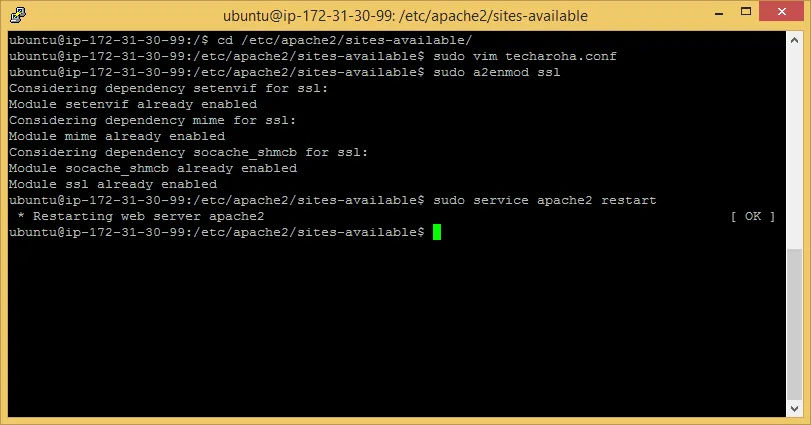
Now Visit http://52.66.6.159/testblog and check if there is any certificate error.
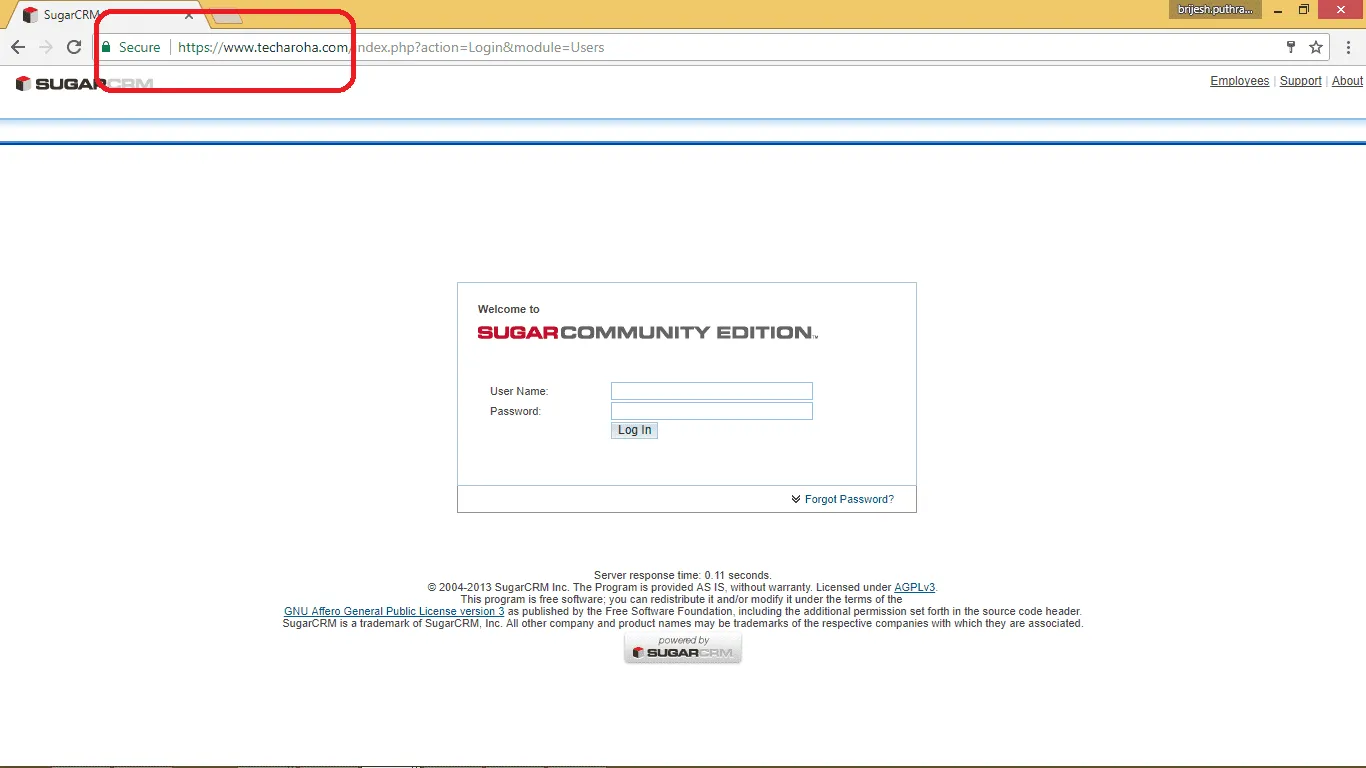
If you want your website to force https you have to make change in .htaccess
RewriteEngine On
RewriteCond %{SERVER_PORT} 80
RewriteRule ^(.*)$ http://52.66.6.159/testblog/$1
(add above lines to existing .htaccess file in your public directory or create a new file)
Enable mod rewrite and restart apache service
sudo a2enmod rewrite
sudo service apache2 restart
visit http://52.66.6.159/testblog and test it should redirect to http://52.66.6.159/testblog, If you need any help you can always contact here
Written by
Manoj Kolhe
Techaroha Solutions